For most content, the best LG TV picture mode is Filmmaker Mode: it disables motion smoothing, locks the white point to Warm 50 (the setting closest to the D65 broadcast standard), turns off noise reduction, and keeps Real Cinema on so 24 fps film plays without judder. Switch to ISF Expert (Bright Room) or Cinema Home when ambient light is too strong for Filmmaker Mode to look punchy, Game Optimizer for consoles and PC, and a manually tuned Standard or Cinema preset with TruMotion set to User (De-Judder 7 / De-Blur 10) for sports. Every mode below is a starting point — the numbers that follow are what actually make the picture look right.
Our top picks
 LG 75-Inch QNED evo AI QNED84B Series
- Provides a full range of colors for a…
- Mini LEDs create picture accuracy for brighter highlights…
- Enjoy outstanding picture, which uses AI to detect…
 LG 43-Inch QNED AI 4K QNED73B Series
- Enhances color accuracy for vibrant, more lifelike viewing…
- Enhanced brightness, improved sound, refined picture detail
- Dynamically adjusts brightness, revealing crisp details and vivid…
 LG 65-Inch OLED evo AI 4K C5
- OLED Technology: Celebrating 12 years of perfecting award-winning…
- Brightness Booster: Our Brightness Booster technology magnifies each…
- Bright Room Ready: Verified by UL for Discomfort…
| Product | Key specs | |
|---|---|---|
| LG 75-Inch QNED evo AI QNED84B Series | Provides a full range of colors for a… Mini LEDs create picture accuracy for brighter highlights… Enjoy outstanding picture, which uses AI to detect… | Check price |
| LG 43-Inch QNED AI 4K QNED73B Series | Enhances color accuracy for vibrant, more lifelike viewing… Enhanced brightness, improved sound, refined picture detail Dynamically adjusts brightness, revealing crisp details and vivid… | Check price |
| LG 65-Inch OLED evo AI 4K C5 | OLED Technology: Celebrating 12 years of perfecting award-winning… Brightness Booster: Our Brightness Booster technology magnifies each… Bright Room Ready: Verified by UL for Discomfort… | Check price |
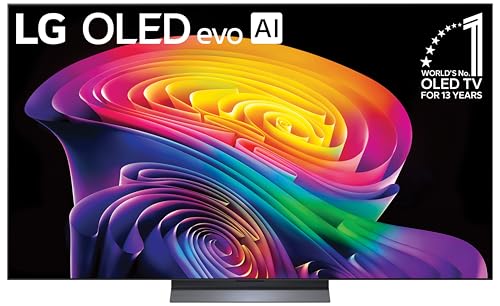 LG 65-Inch Class OLED evo AI 4K LG 65-Inch Class OLED evo AI 4K | Brighter visuals and vivid detail with Brightness Booster… Over 8.3 million self-lit smart pixels with Perfect… Find and choose what to watch fast, without… | Check price |
As an Amazon Associate we earn from qualifying purchases at no extra cost to you.
LG picture modes compared
| Picture mode | Best for | What it changes | Main trade-off |
|---|---|---|---|
| Filmmaker Mode | Movies, series, streaming, disc | Warm 50 white point, Real Cinema on, TruMotion off, noise reduction off, most processing bypassed | Looks flat and dim in a sunlit room |
| ISF Expert (Dark Room) | SDR films at night, calibration base | Fully unlocked settings, BT.1886 gamma, per-input memory | SDR only; HDR uses its own preset list |
| ISF Expert (Bright Room) | Daytime SDR viewing | Same controls as Dark Room, tuned for higher ambient light | Too bright and cool for a dark room |
| Cinema / Cinema Home | HDR10 and Dolby Vision films | Cinema Home lifts shadow detail and peak brightness | Cinema Home is less accurate than Cinema in a dark room |
| Game Optimizer | PS5, Xbox, PC, cloud gaming | Enables ALLM and VRR, bypasses most video processing | No 24 fps handling — wrong choice for films |
| Sports | Broadcast sports | Boosts saturation and adds strong motion smoothing | Oversaturated skin tones and soap-opera motion |
| Standard / Vivid | Showroom demos, casual daytime TV | Vivid maxes brightness, contrast and saturation | Vivid is the least accurate mode on the TV |
Best overall: Filmmaker Mode
Filmmaker Mode is the only preset on an LG set that is designed to reproduce the source rather than sell the panel. It sets colour temperature to Warm 50, disables Dynamic Contrast, Dynamic Colour and noise reduction, and switches TruMotion off. On recent webOS versions you can also enable Filmmaker Mode Auto Start, which detects film and television content and applies the mode automatically instead of making you hunt through the menu.
Numbers to set on top of Filmmaker Mode
- OLED Pixel Brightness: 60–80 for a dark room (roughly 100 nits, the SDR reference level), 100 for daytime.
- Contrast: 85–90 on OLED, 90–100 on QNED and other LED-lit models.
- Gamma: BT.1886 in a dark room, 2.2 in a bright room.
- Sharpness: 10 is effectively neutral on LG sets; anything higher adds edge halos, anything lower softens detail.
- Colour Gamut: Auto. Native oversaturates everything.
- Black Level: Low for video sources (limited range), High only for a PC sending full range.
- Energy Saving: Off. This one setting undoes more good calibration than any other.
For HDR10 and Dolby Vision, use the dedicated Dolby Vision Cinema and Cinema Home presets instead — Filmmaker Mode does not govern Dolby Vision content. In HDR, OLED Pixel Brightness goes to 100, Contrast to 100, and Dynamic Tone Mapping stays Off for accuracy or switches to HGIG for games.
When Filmmaker Mode is the wrong pick
Three situations: a room with direct daylight, live sports, and gaming. In each case the mode is doing exactly what it should, but the content or the room needs something the mode deliberately avoids.
Best for a bright room: ISF Expert (Bright Room) or Cinema Home
In daylight, accuracy loses to visibility. Use ISF Expert (Bright Room) for SDR and Cinema Home for HDR, then push OLED Pixel Brightness to 100, Peak Brightness to High, and leave AI Brightness off so the picture does not drift as clouds pass. Panel type sets the ceiling here: entry OLEDs typically peak around 600–800 nits, mid-range C-series panels around 800–1,000 nits, and flagship OLED evo and mini-LED QNED sets reach roughly 1,300–2,000+ nits in a small window, per manufacturer spec sheets and independent lab measurements. If your room is genuinely sunlit all day, a QNED or mini-LED model will hold up better than an OLED, which relies on per-pixel light and cannot outrun a window.
Best for sports: a tuned Cinema or Standard preset
LG’s Sports mode works, but it over-saturates and over-smooths. You get a better result starting from Cinema or Standard, turning TruMotion to User, and setting De-Judder to 7 and De-Blur to 10. That combination cleans up panning camera movement on a 60 fps broadcast without the waxiness of Smooth. If you watch a lot of fast-motion sport and dislike the blur of sample-and-hold OLED, enable OLED Motion Pro (black frame insertion) — it sharpens motion noticeably but dims the image, so it suits a dim room more than a bright one.
Best for gaming: Game Optimizer with HGIG
Game Optimizer is not really a look — it is a latency and compatibility switch. It enables Auto Low Latency Mode and variable refresh rate, and LG’s published figures for recent OLEDs put input lag at roughly 5–10 ms at 120 Hz and around 10 ms at 60 Hz in this mode; with heavy processing enabled outside it, lag can climb into the tens of milliseconds. Inside Game Optimizer you also get genre presets (Standard, FPS, RPG, RTS) that shift gamma and sharpening.
- Consoles in HDR: HGIG on, Dynamic Tone Mapping off. The console does the tone mapping instead of the TV double-mapping it.
- PC: 4:4:4 chroma, Black Level High, Sharpness 10, and a 120 Hz refresh rate where the panel supports it.
- Always: OLED Pixel Brightness 100 in HDR, TruMotion off, Reduce Blue Light off.
Motion settings by content
| Content | Real Cinema | TruMotion | Why |
|---|---|---|---|
| 24 fps film and prestige TV | On | Off, or Cinematic Movement | Preserves the intended cadence; avoids soap-opera effect |
| Live sport | On | User: De-Judder 7 / De-Blur 10 | Smoothes camera pans without smearing fast action |
| Games | n/a | Off | Motion interpolation adds input lag |
| News tickers and studio shows | On | Off or De-Judder 2 | Low-motion content gains nothing from interpolation |
Settings cheat sheet
| Setting | SDR, dark room | SDR, bright room | HDR / Dolby Vision | Game Optimizer |
|---|---|---|---|---|
| OLED Pixel Brightness | 60–80 | 100 | 100 | 100 |
| Contrast | 85–90 | 90–100 | 100 | 100 |
| Gamma | BT.1886 | 2.2 | Fixed by content | 2.2 |
| Peak Brightness | Off | High | High | High |
| Dynamic Tone Mapping | n/a | n/a | Off (On if the room is very bright) | HGIG |
| Local Dimming (QNED/mini-LED) | Medium | High | High | High |
How to apply these settings so they stick
- Step 1 — Turn Energy Saving off first. Settings → General → Energy Saving → Off. If it stays on, the TV will dim the panel mid-scene and every other number you entered becomes unreliable.
- Step 2 — Set the mode per input, not globally. LG stores picture settings separately for each HDMI port, the built-in apps and each HDR format. Reason: your console, disc player and streaming apps need different modes, and a single global setting will compromise at least two of them.
- Step 3 — Repeat the work for HDR. SDR and HDR have separate memory. Enter your HDR values again in Cinema or Cinema Home, or the set will fall back to defaults the first time it detects an HDR signal.
- Step 4 — Enable Filmmaker Mode Auto Start. Picture → Filmmaker Mode Auto Start. Reason: it applies the correct mode automatically when it detects film content, so you stop noticing which mode is active.
- Step 5 — Verify with test patterns. A black-level test pattern confirms Black Level Low is correct; a near-black ramp shows whether gamma is crushing shadow detail. Reason: these two errors look like “bad panel uniformity” but are almost always a settings mismatch.
Common mistakes and long-term care
The most common mistakes are leaving Vivid or Standard selected because it looks punchy in a shop, leaving Dynamic Contrast and Dynamic Colour on, using HDR Effect for SDR content (it is a fake HDR look, not a mode), and mismatching Black Level between source and TV — a limited-range signal with Black Level High washes out blacks. On OLED, keep Screen Shift and Logo Luminance Adjustment on and avoid a single static bright element for hours at a time; the panel runs a short automatic pixel refresh after roughly four hours of cumulative use, and LG’s guidance is to run the full Pixel Refresher cycle periodically or when you notice temporary image retention. Temporary retention from a news ticker usually clears; permanent burn-in from a game HUD at maximum brightness does not.
Frequently Asked Questions
Is Filmmaker Mode always the best LG TV picture mode?
No. It is the most accurate mode for film and television in a dim room, but it deliberately caps brightness, so it looks flat in direct daylight and it does no motion smoothing, which makes fast sport harder to follow. Use it as your default for movies and switch away for bright-room daytime viewing, sport and gaming.
Should I ever use Vivid mode?
Only if you want maximum impact in a very bright room and do not care about accuracy. Vivid pushes colour temperature cool, maxes contrast and saturation, and adds motion smoothing, which is why skin tones look orange and film looks like a soap opera. Standard is a better compromise if Filmmaker Mode is too dim.
What TruMotion setting is best?
Off for films and games, and User with De-Judder 7 and De-Blur 10 for live sport. Cinematic Movement is a middle option that removes the worst of 24 fps judder on OLED without the full soap-opera effect, and it is a reasonable choice if you are sensitive to judder on a large panel.
Does the picture mode affect input lag?
Yes, significantly. Game Optimizer bypasses most video processing and enables ALLM and VRR, which is where LG’s low single-digit-to-low-teens millisecond figures come from. Any mode with motion interpolation, noise reduction or dynamic contrast active adds processing delay, which is why film modes feel sluggish with a controller.
Do I need to set the picture mode for every input and every HDR format?
Yes. LG stores settings per input, and SDR, HDR10, HLG and Dolby Vision each have their own memory. A single global adjustment will not carry across, so plan on repeating your values on each HDMI port and in each HDR preset you actually use.
Does a brighter picture mode increase the risk of OLED burn-in?
Higher OLED Pixel Brightness does increase the wear rate on the pixels that are lit most often, which is why static logos and HUDs are the usual culprits. Keep Logo Luminance Adjustment and Screen Shift on, avoid Vivid for long sessions of the same static-content game, and run the Pixel Refresher when you notice retention that does not clear on its own.